
Your first USFans order, step by step.
Start with a find. Check your own QC. Then arrange delivery. This guide follows the journey from Findsbook to your USFans account.
Plan for two payment stages
Item purchase
The item and delivery to the Chinese warehouse are paid for first.
International delivery
Arrange and pay for the overseas parcel separately after the goods are ready. Allow for applicable extra fees and import charges.
Choose a product on USFans
Browse a category, narrow the price range or use the QC filter. Open a product’s own detail page to compare its main images, recorded price and reference QC. Use Saved to keep a shortlist in this browser.
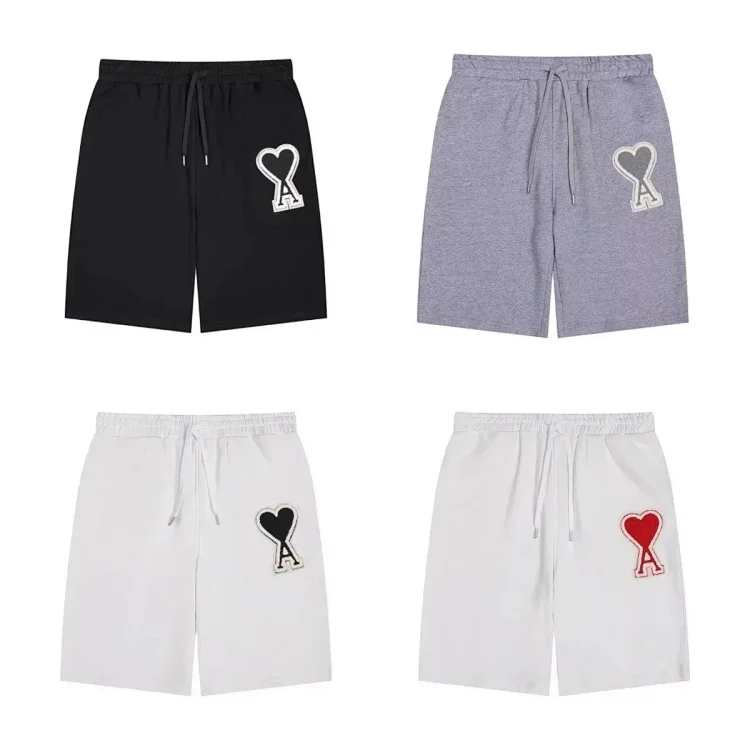
AMI — Shorts
Item prices are catalog references, not a final checkout quote. Shipping and other costs may apply.
Open this product- 1
On the homepage, choose Pants, find AMI shorts and click the product photo or name.
- 2
On the detail page, review the main image; scroll down to reference QC and click a photo to enlarge it.
- 3
Click “Open product on USFans” on the detail page to open the same shorts on USFans.
Choose a product on USFans
Example from this websiteBefore moving on
A saved item is not a purchase or a reservation. Catalogue prices and stock are not live guarantees.
Select options and submit the order
Read the category advice and compare the seller’s measurements with something you own. Use the product’s USFans button to open that item on the purchasing platform.
Choose the variant under Style
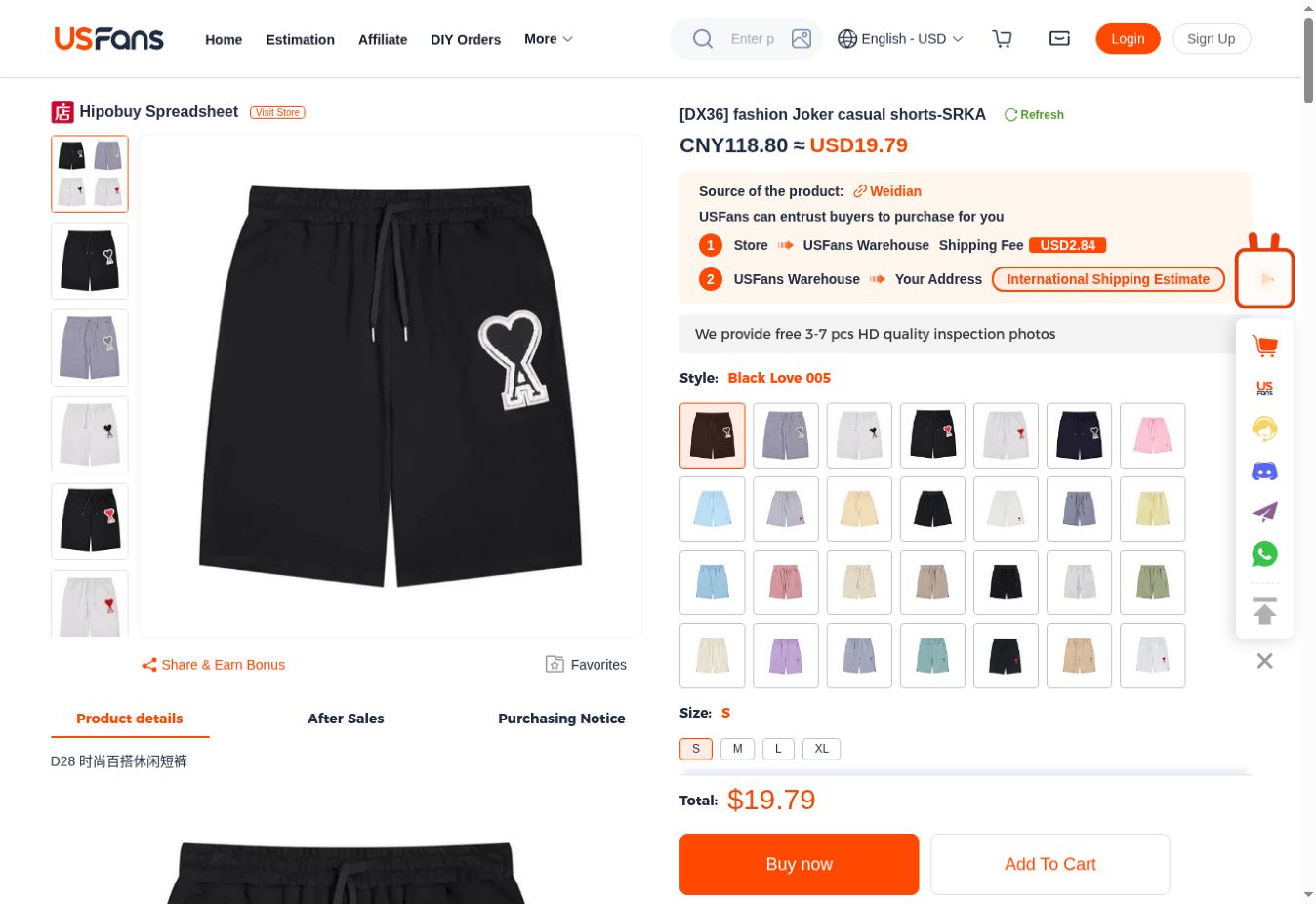
- 1
Click a shorts thumbnail under Style. Black Love 005 is selected here; choose the variant you want.
Choose size and quantity, then click Buy now
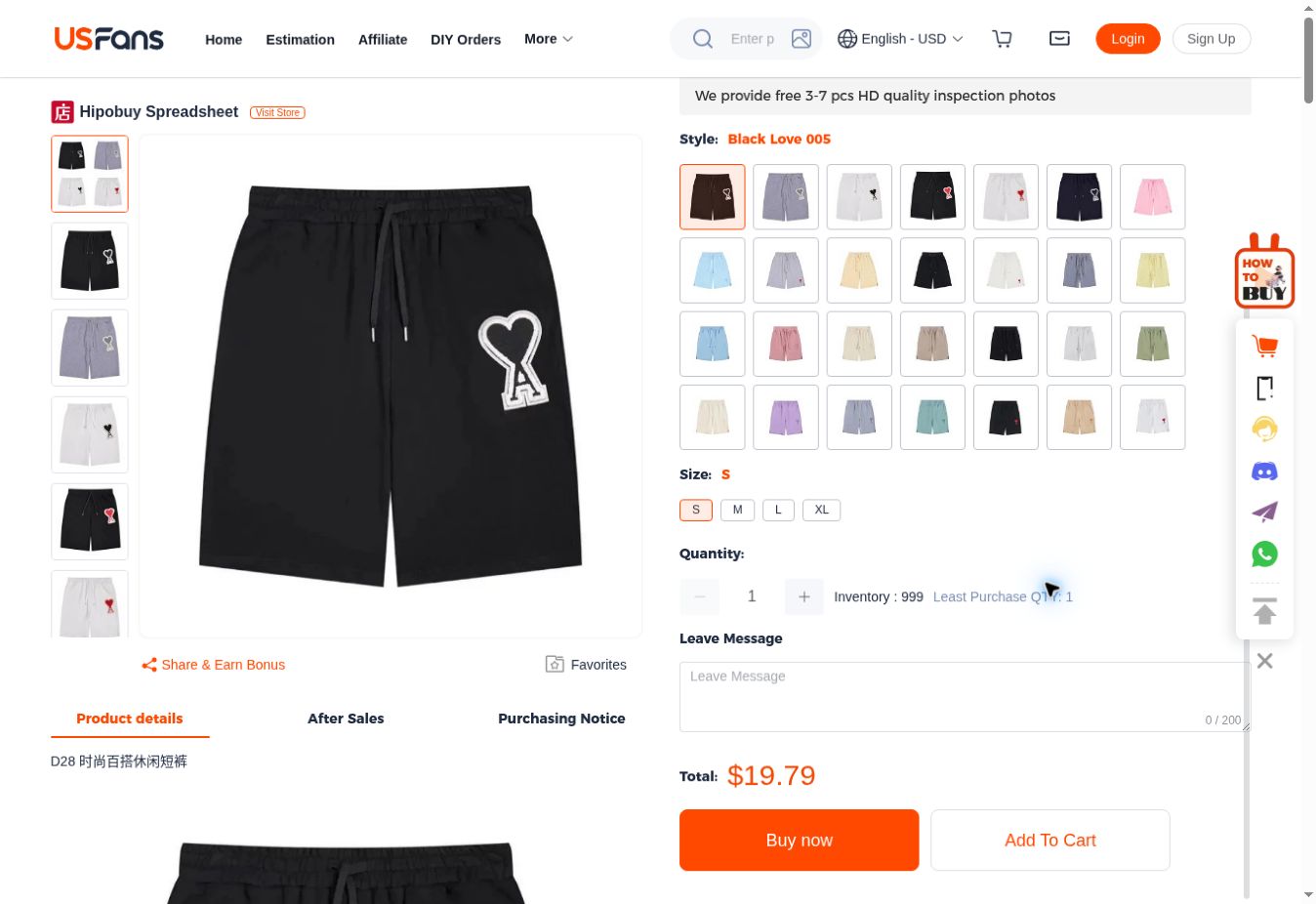
- 2
Click S, M, L or XL under Size. S is the captured selection, not a sizing recommendation.
- 3
Use − / + under Quantity and check the number between them.
- 4
Review Total, then click the orange Buy now button. Use Add To Cart on its right if shopping for more items.
Select options and submit the order
Live-page capture · 2026-10-09. Screenshot amounts identify the interface only; check current prices and stock.Before moving on
Reference QC belongs to a previous item, not your order. Recheck colour, size, quantity and availability on the live product page.
Pay for the item
Register using the link below or sign in to your existing USFans account. Select the exact variant, add it to the cart or proceed to purchase, and review the first payment before submitting.
Confirm Order: verify the shorts and first-stage costs
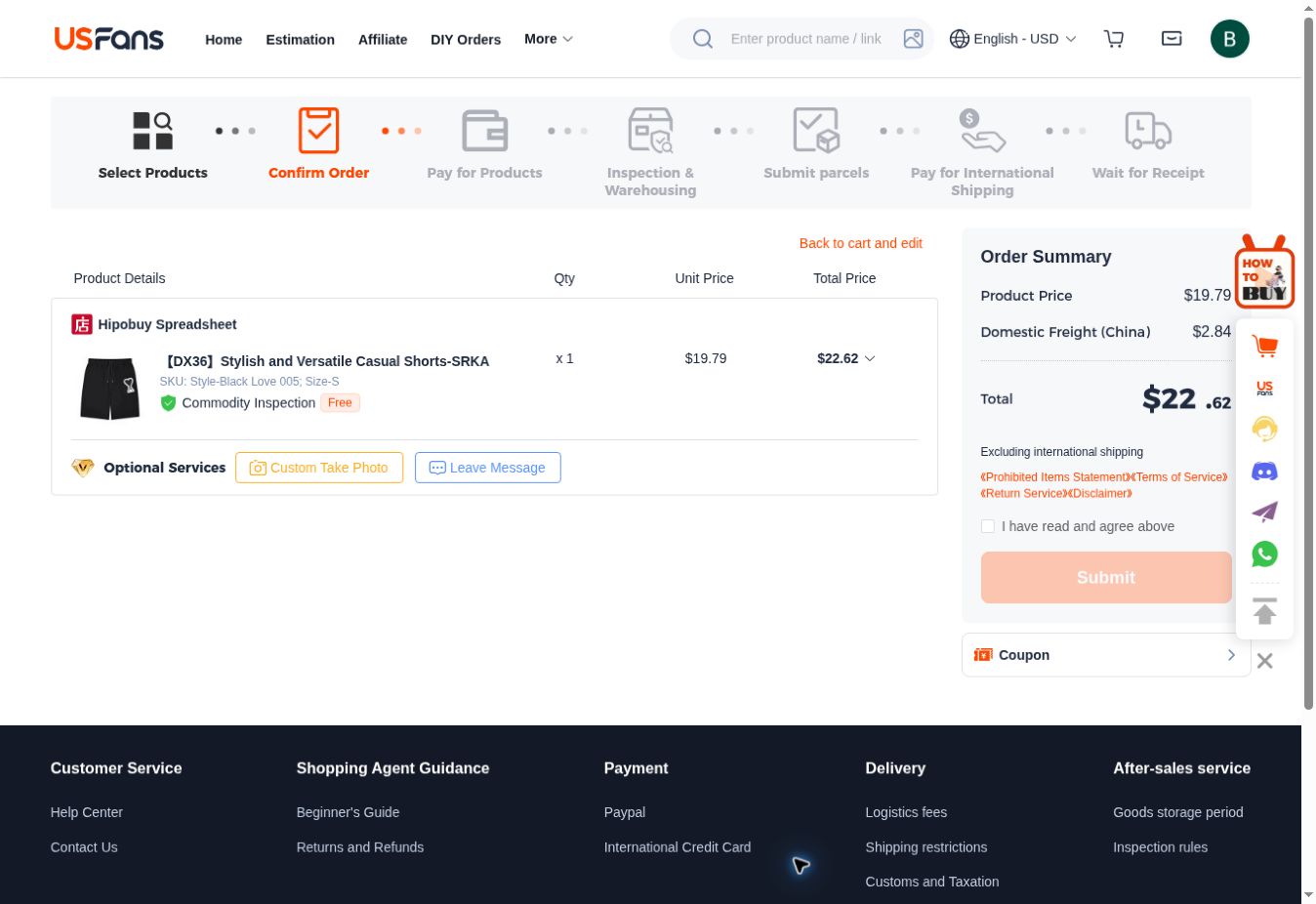
- 1
Check Product Details: these shorts, the Style and Size in SKU, and Qty. Use Back to cart and edit if anything is wrong.
- 2
In Order Summary, review Product Price, Domestic Freight (China) and Total. Excluding international shipping means international delivery is not included.
- 3
Use Custom Take Photo or Leave Message if needed. Read the terms; tick I have read and agree above only if you agree, then use Submit to continue. This capture is before submission or payment.
Not signed in? See the login steps
Sign in before continuing the order
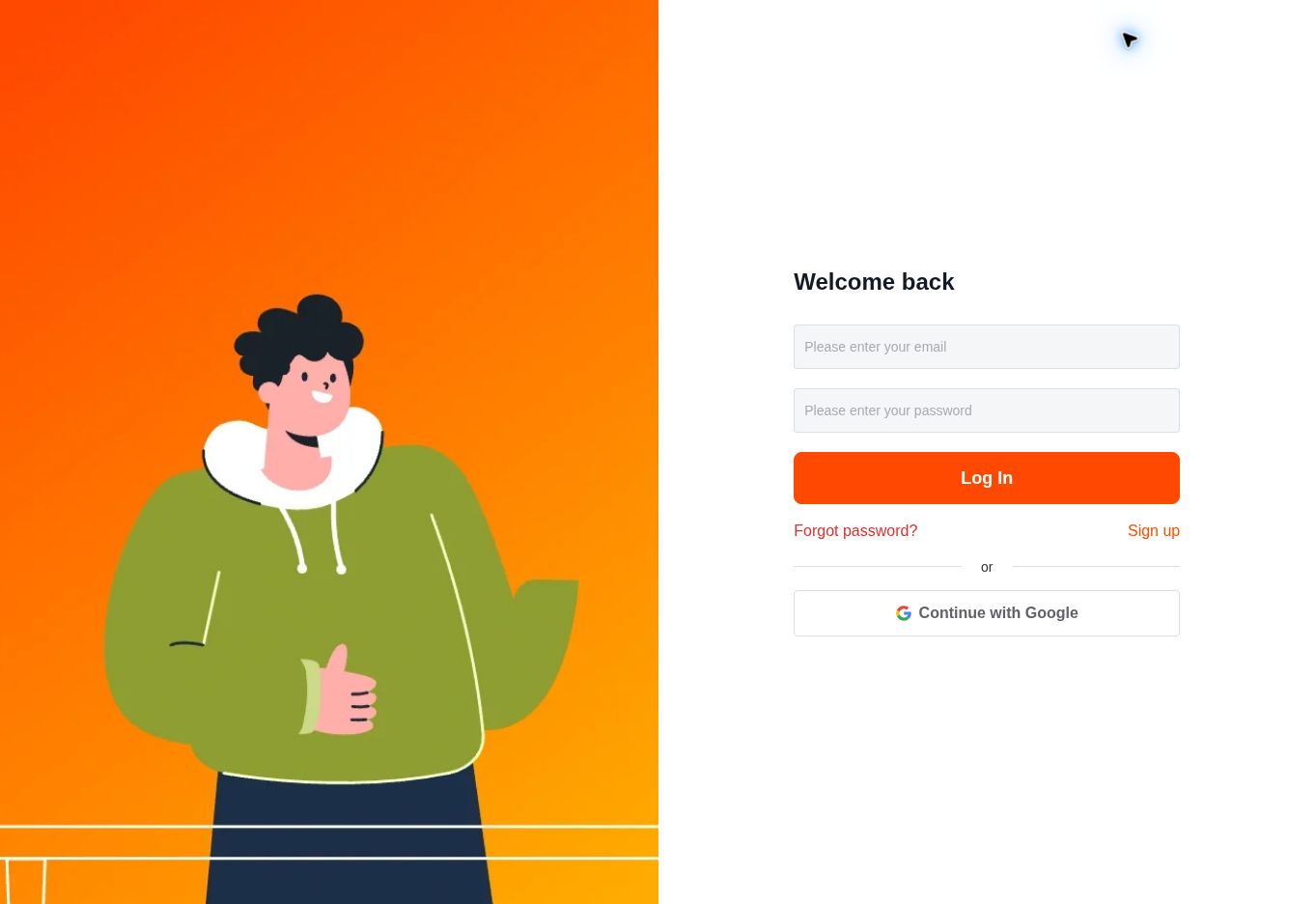
- 1
If signed out, click Login in the top-right corner to open this screen.
- 2
Existing account: enter your email and password, then click Log In; Continue with Google is also available.
- 3
New account: use the registration button on this website, then return to these shorts.
- 4
After signing in, return to the product, check the options and click Buy now. Review the item and fees on the order confirmation page before following the payment prompts.
Pay for the item
Live-page capture · 2026-10-09. Screenshot amounts identify the interface only; check current prices and stock.Before moving on
Check the item cost, Chinese domestic delivery and any displayed fees. Paying for the item does not submit an international parcel.
Wait for the agent purchase
USFans places the purchase with the seller. Follow the order in your USFans account and respond if the agent requests clarification. Seller dispatch and warehouse processing are separate stages.
Actual page navigation · Order
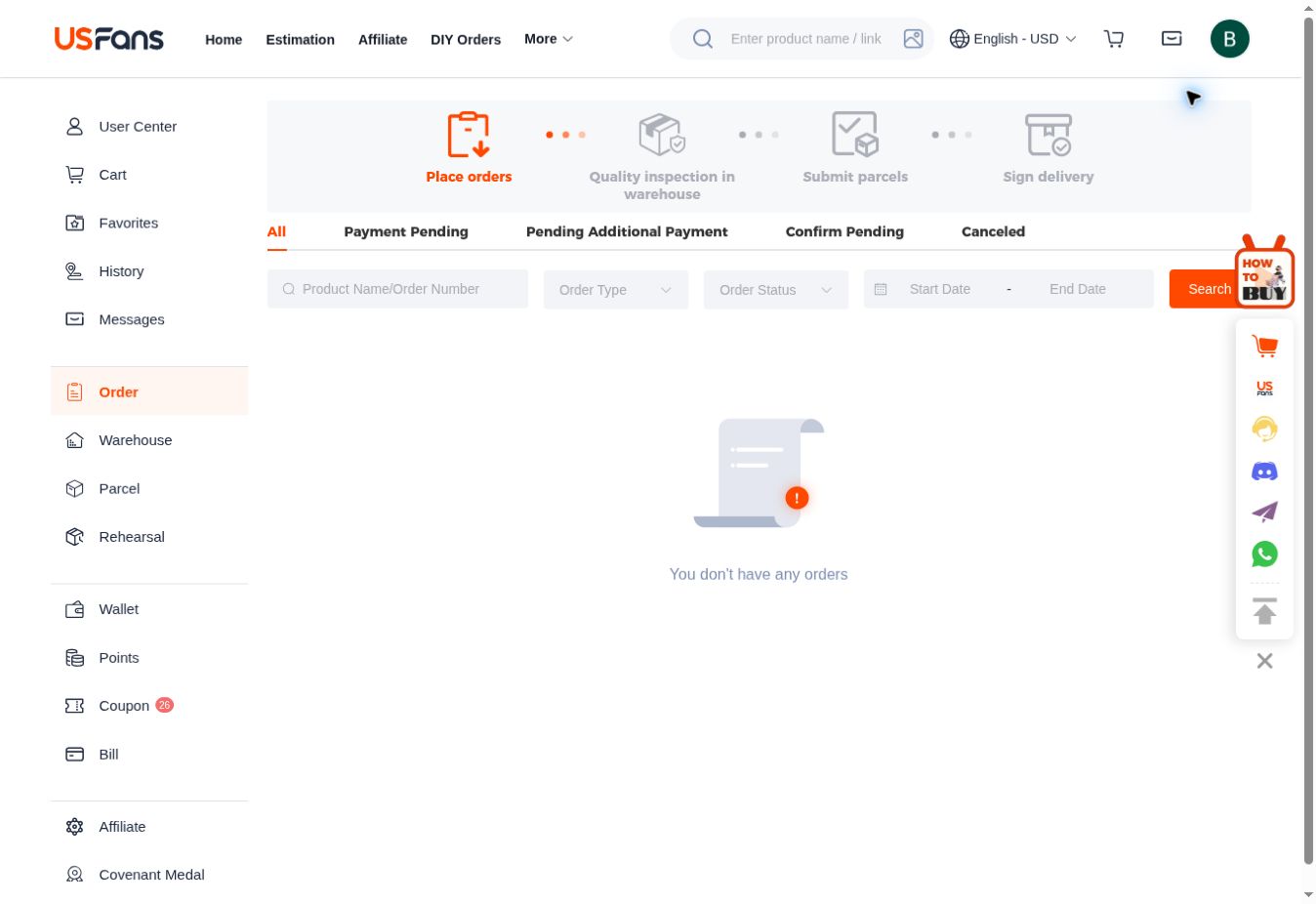
- 1
Click Order in the left sidebar.
- 2
Click the All / Payment Pending / Pending Additional Payment / Confirm Pending tab to filter that status.
- 3
Enter the item name or number in Product Name/Order Number, then click Search.
Wait for the agent purchase
Real account page with no orders, stored items or parcels. This capture shows navigation; details and action buttons appear only when a matching record exists.Before moving on
Check order messages if something needs confirmation. Contact USFans through the relevant order for a purchase issue.
Check QC and warehouse storage
Once the goods are stored, open Warehouse on USFans and inspect the photos attached to your order. Compare labels, colour, quantity and visible condition. Ask about additional photos or measurements when needed.
Actual page navigation · Warehouse
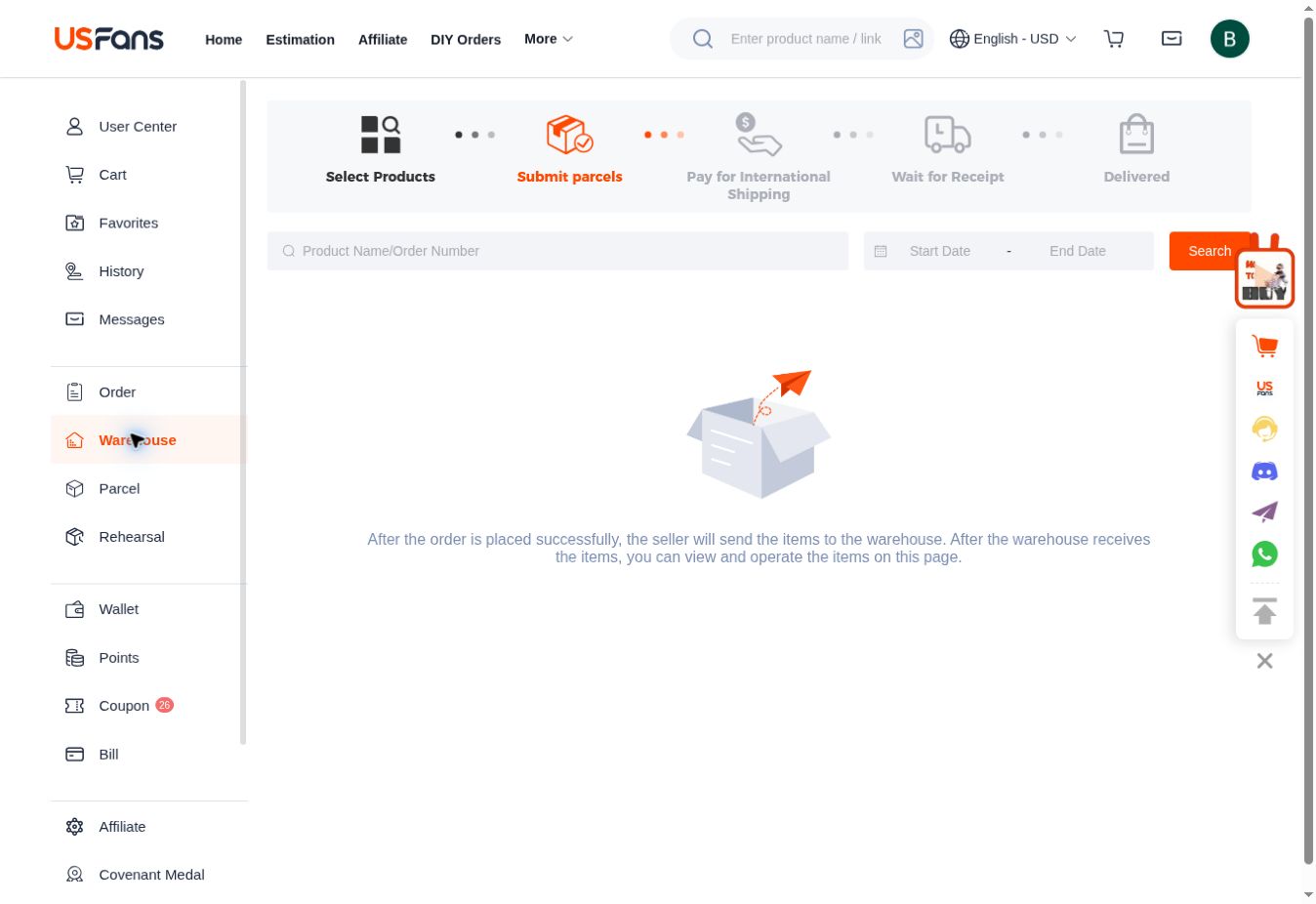
- 1
Click Warehouse in the left sidebar.
- 2
Enter the item name or number in Product Name/Order Number, then click Search.
- 3
If Warehouse is empty, check the purchase in Order first. Inspect your own QC once the item arrives. The shorts photos below are historical catalogue references.
AMI — Shorts
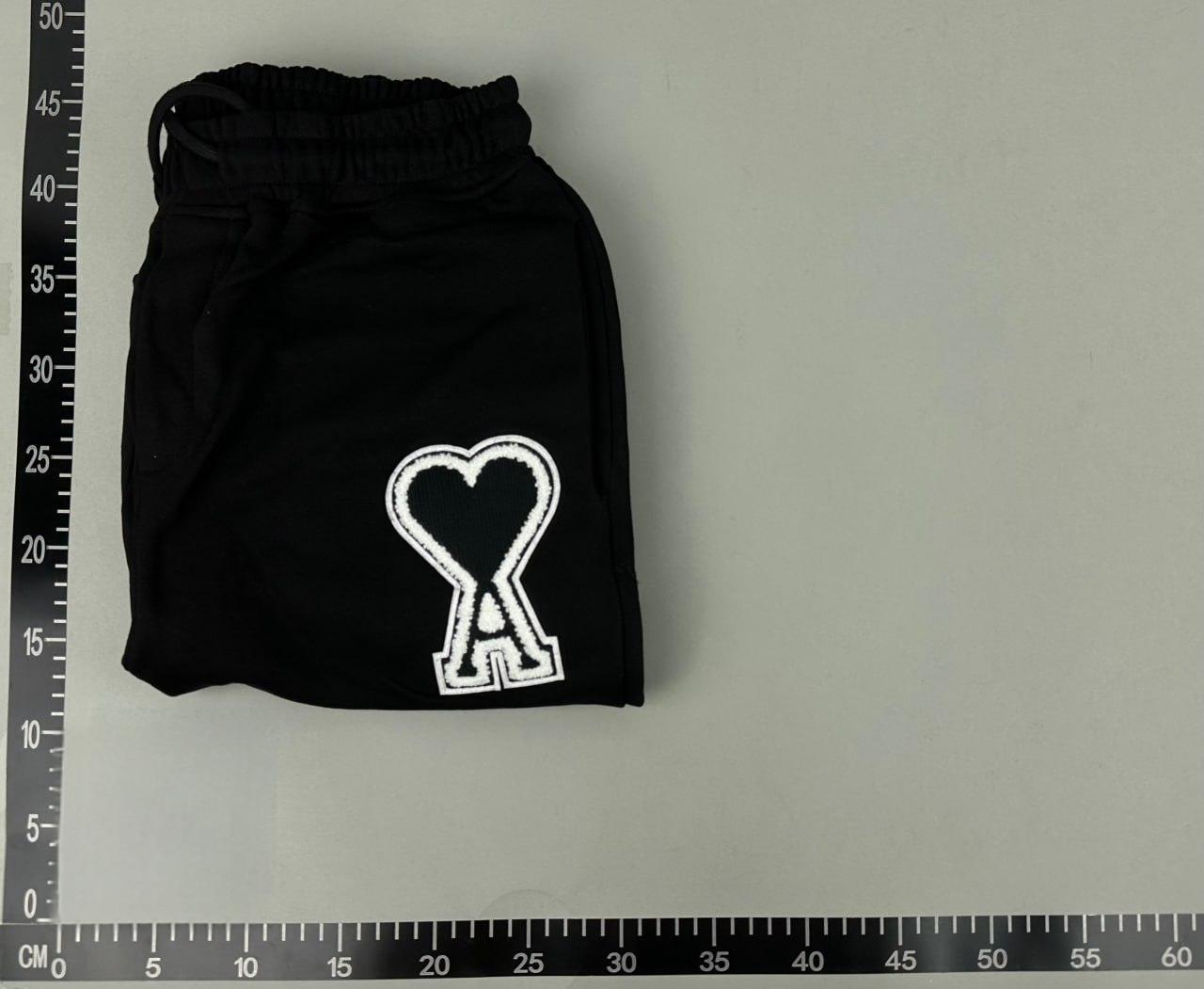
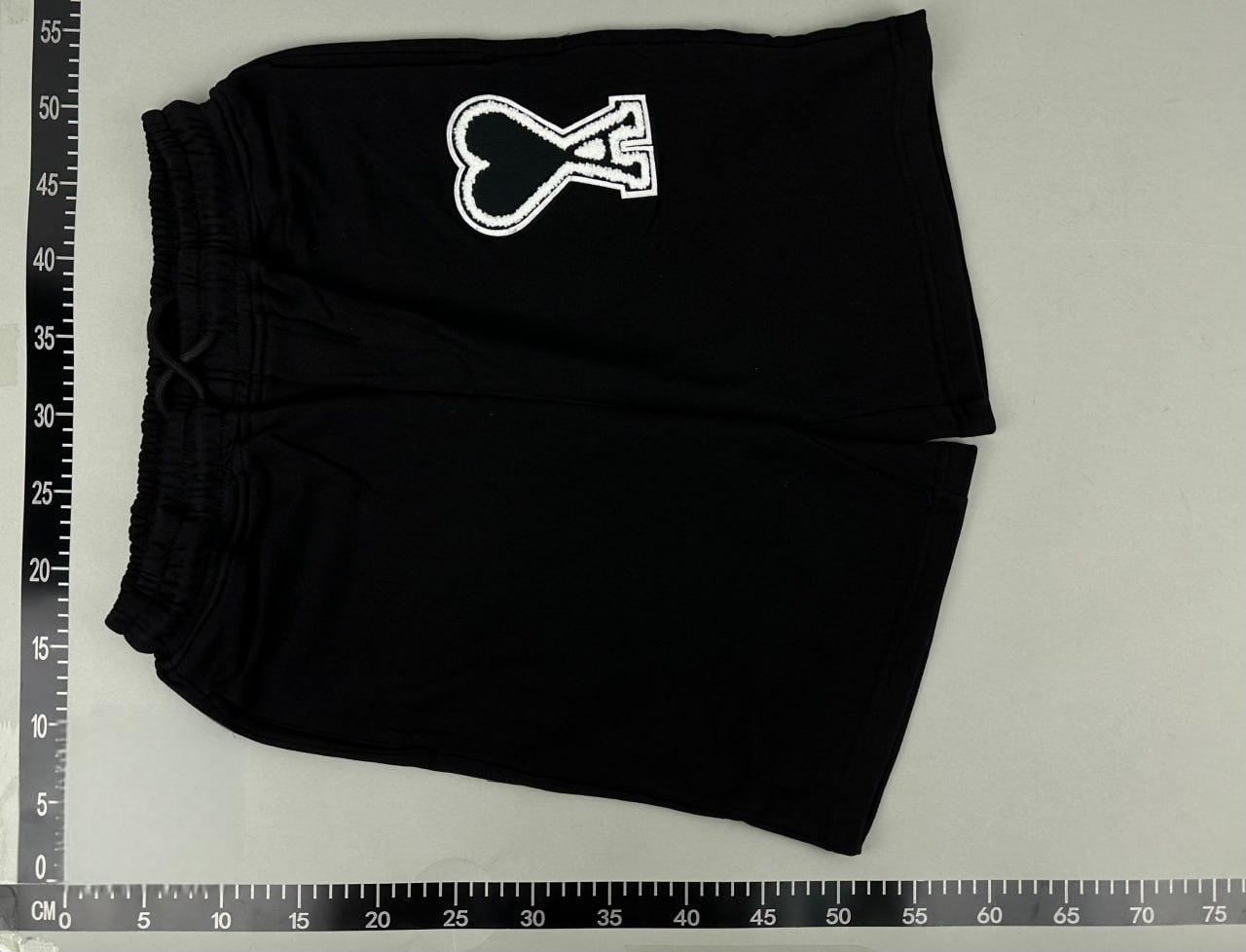
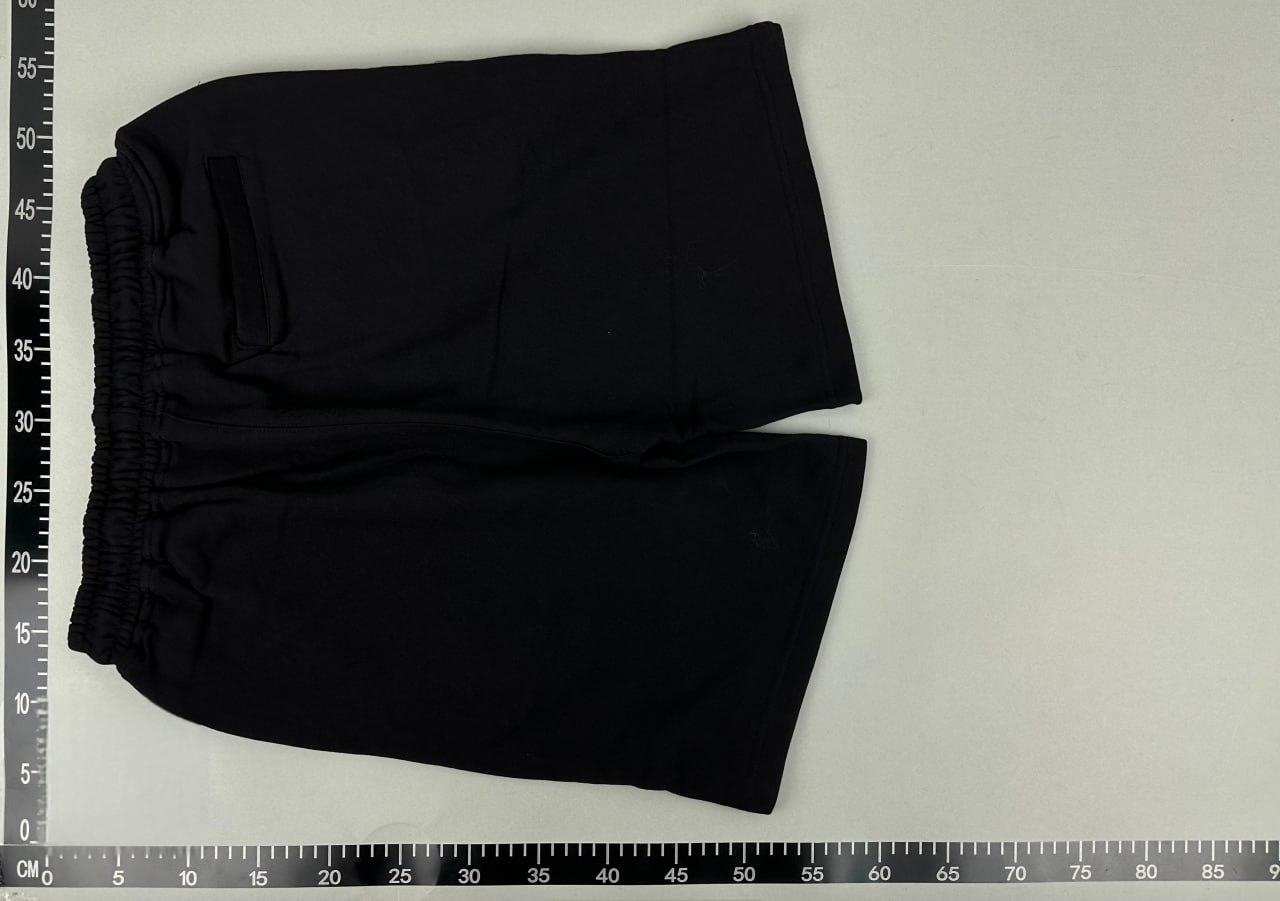
Illustrated with a catalogue QC example; not photos of your own order.
Check QC and warehouse storage
Real account page with no orders, stored items or parcels. This capture shows navigation; details and action buttons appear only when a matching record exists.Before moving on
Resolve a wrong item or return request before arranging international shipping. Check the item’s return conditions, deadline and any extra-service charge.
Submit a parcel
Select ready items in Warehouse, enter the recipient’s delivery details and compare the available routes. Decide whether to combine items and whether any packaging or other optional service is useful.
Actual page navigation · Warehouse
- 1
Click Warehouse in the left sidebar.
- 2
Enter the item name or number in Product Name/Order Number, then click Search.
- 3
Wait for the shorts to reach Warehouse. Select eligible items when they appear to prepare a parcel. An empty warehouse does not expose the address, route or submission form.
Submit a parcel
Real account page with no orders, stored items or parcels. This capture shows navigation; details and action buttons appear only when a matching record exists.Before moving on
Check storage deadlines, destination restrictions, address and postcode. Confirm route eligibility before purchasing perfume, liquids or electronics.
Pay international shipping
Review the shipping deposit or amount shown by USFans for your destination and route. Read the billing basis, including weight and dimensions, and the current adjustment rules before payment.
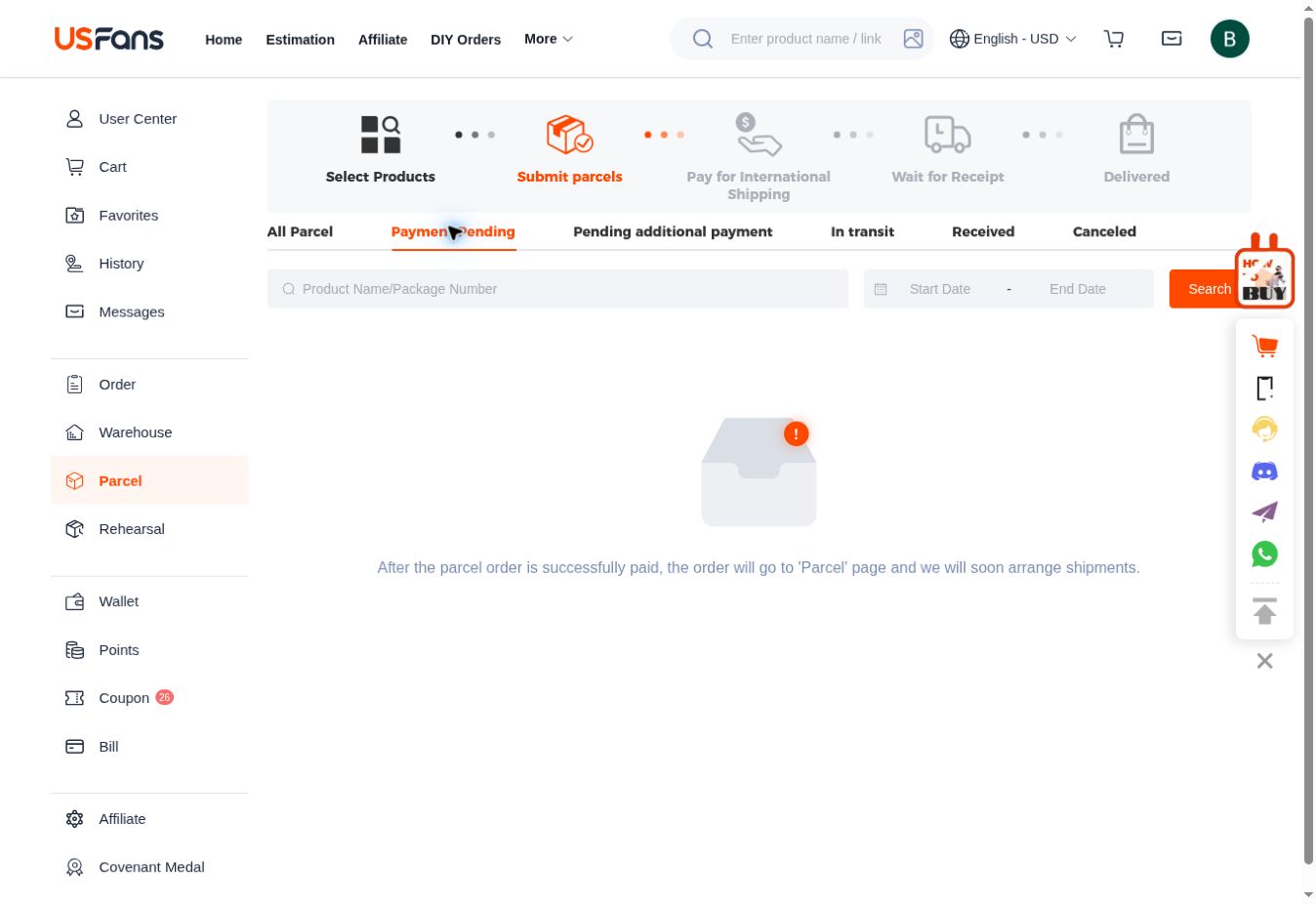
Actual page navigation · Parcel
- 1
Click Parcel in the left sidebar.
- 2
Click the Payment Pending tab to filter that status.
- 3
Payment Pending filters unpaid parcels. Open a matching record to review its fees. This capture contains no payment form and does not show a completed payment.
Pay international shipping
Real account page with no orders, stored items or parcels. This capture shows navigation; details and action buttons appear only when a matching record exists.Before moving on
The final packed size and weight can affect shipping costs. Compare the full cost, not only the item price or a preliminary estimate.
Packing and dispatch
After the parcel request and payment are processed, the warehouse prepares the selected items for dispatch. Follow the parcel status in your USFans account.
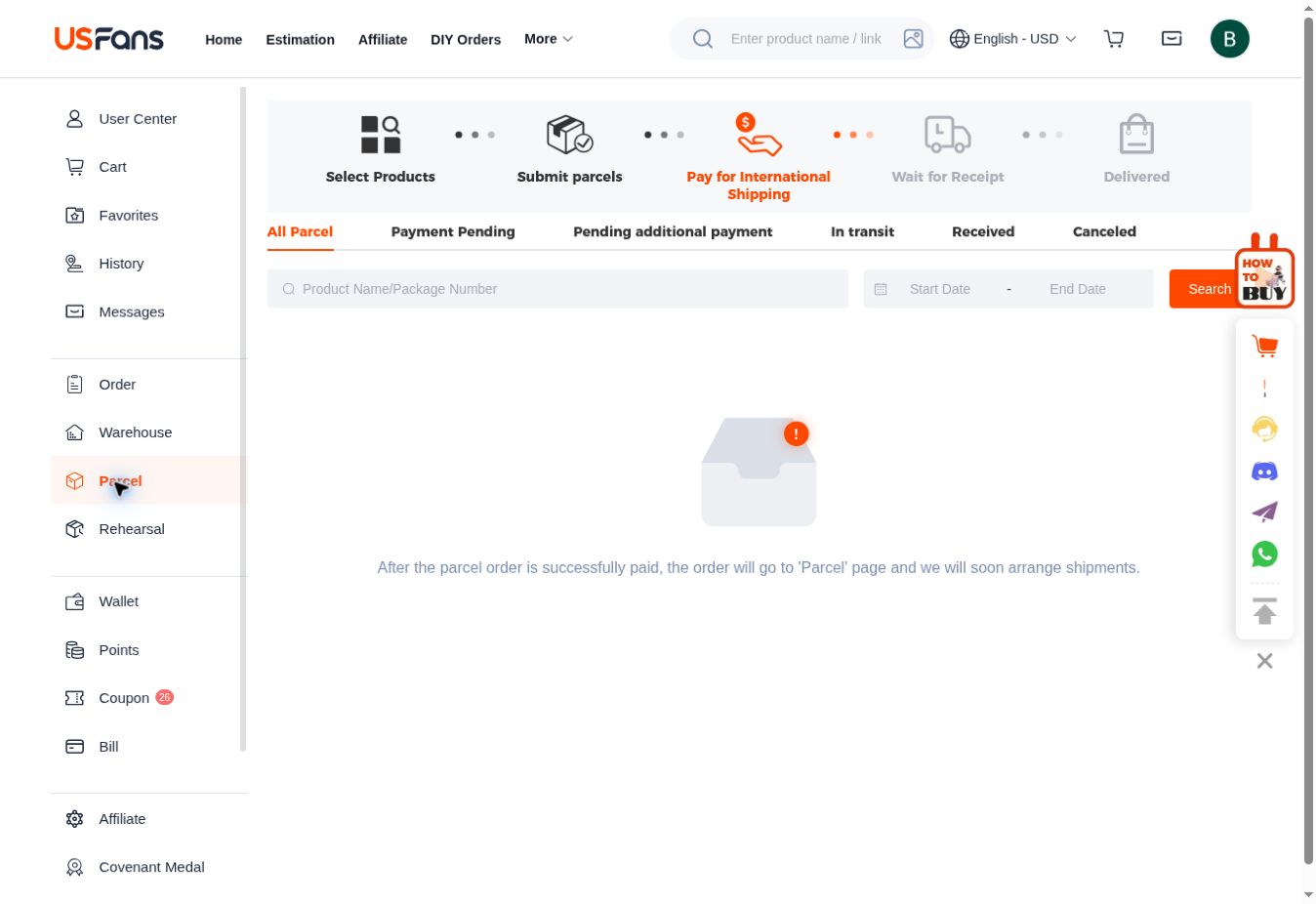
Actual page navigation · Parcel
- 1
Click Parcel in the left sidebar.
- 2
Click the All Parcel tab to filter that status.
- 3
All Parcel lists parcels of every status. Open the matching record to check processing; Payment Pending means payment is still outstanding.
Packing and dispatch
Real account page with no orders, stored items or parcels. This capture shows navigation; details and action buttons appear only when a matching record exists.Before moving on
Packing and dispatch are not the same as final delivery. Check the parcel record for the next update.
Track the delivery
Open Parcels in your account, select the correct parcel and read its tracking history. Follow the latest updates rather than estimating arrival from the item order date.
Actual page navigation · Parcel
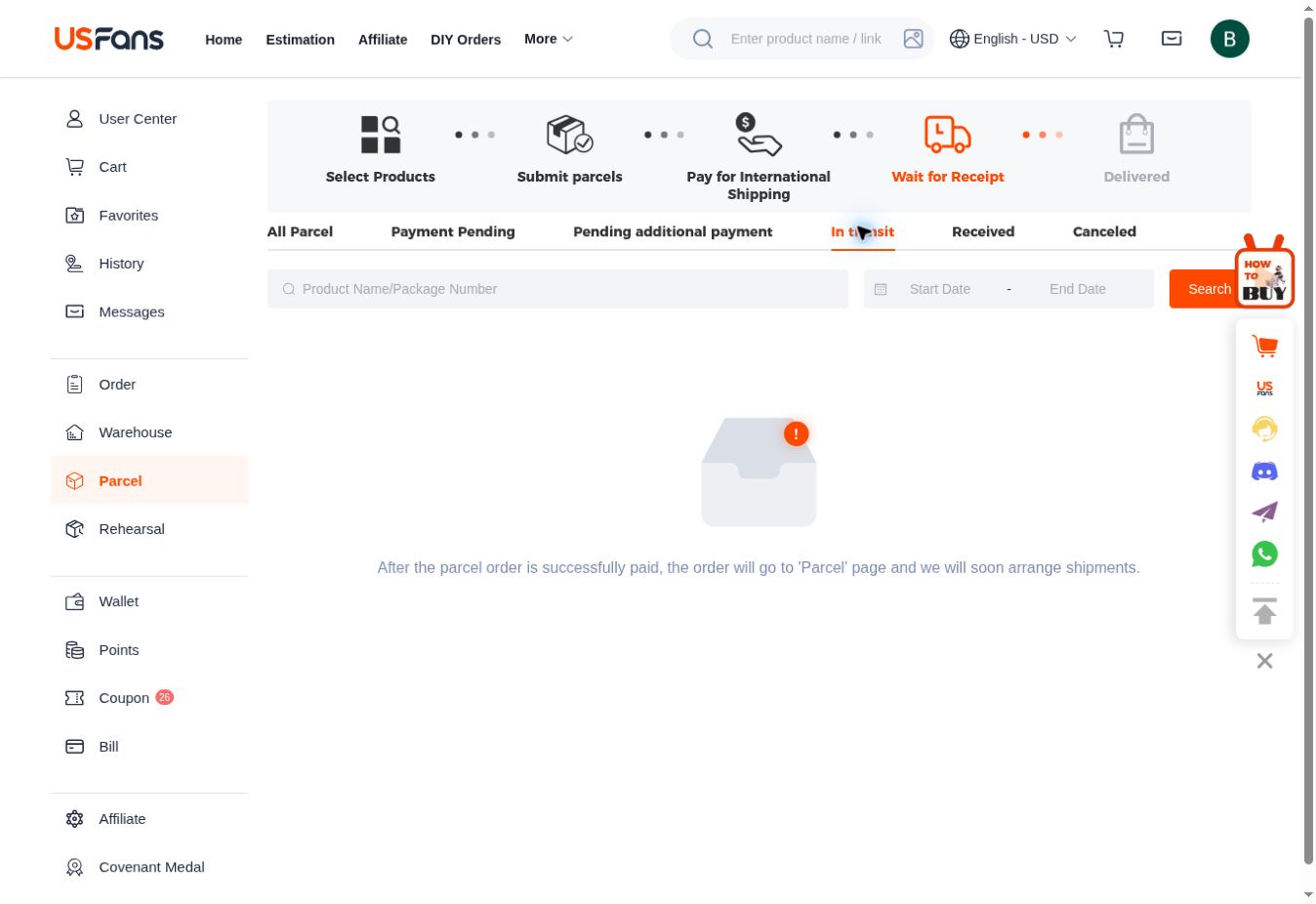
- 1
Click Parcel in the left sidebar.
- 2
Click the In transit tab to filter that status.
- 3
In transit filters parcels being shipped. Open a matching parcel to inspect tracking. An empty list has no tracking record to open.
Track the delivery
Real account page with no orders, stored items or parcels. This capture shows navigation; details and action buttons appear only when a matching record exists.Before moving on
If updates stop, contact support with the parcel number.
Receive and check your items
Check the packaging and contents on arrival. Keep photos and packaging if anything is missing or damaged, then contact support through that parcel.
Actual page navigation · Parcel
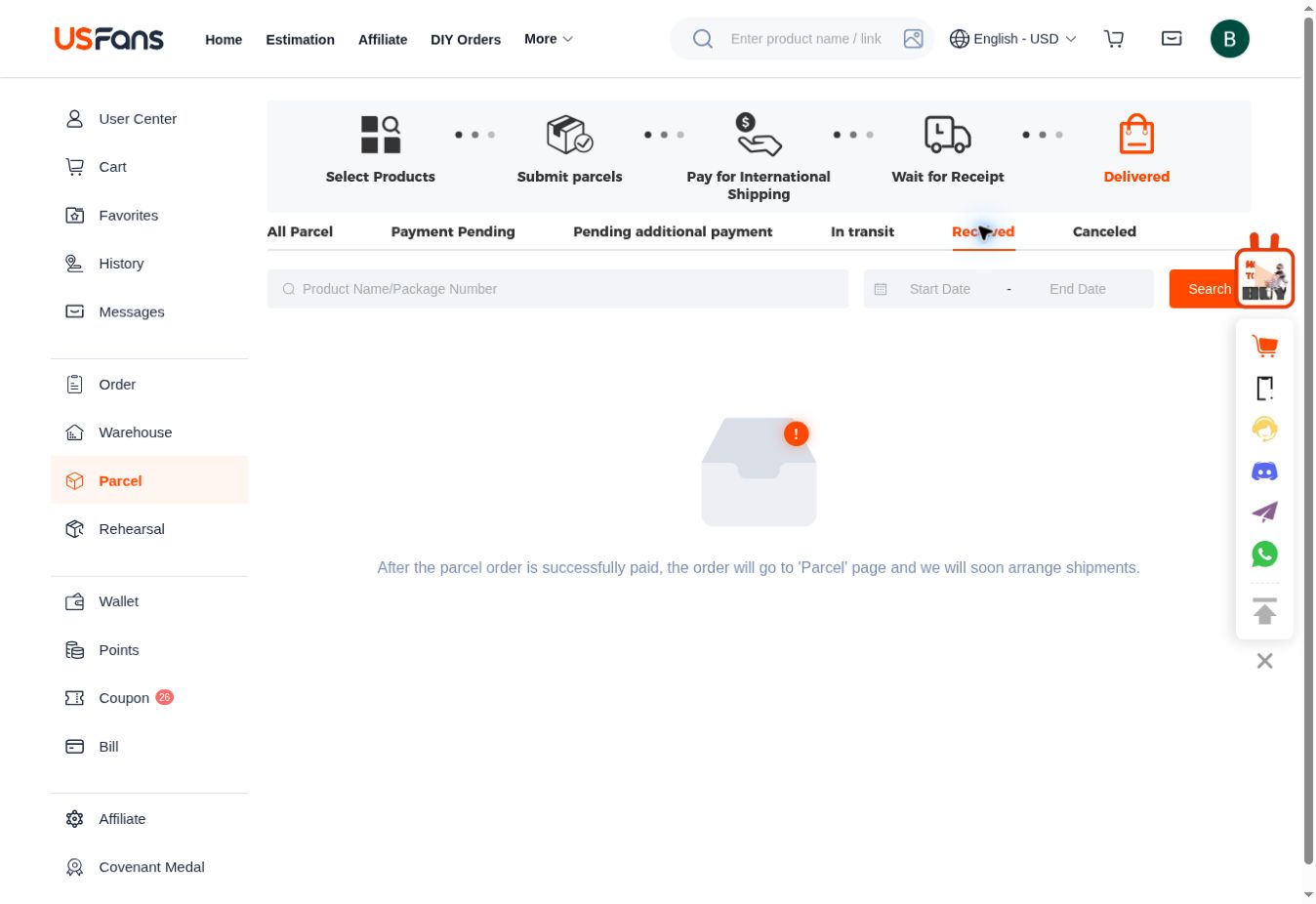
- 1
Click Parcel in the left sidebar.
- 2
Click the Received tab to filter that status.
- 3
Received filters delivered parcels; it is not a receipt-confirmation button. Check your goods before handling receipt confirmation or after-sales within the parcel record.
Receive and check your items
Real account page with no orders, stored items or parcels. This capture shows navigation; details and action buttons appear only when a matching record exists.Before moving on
Confirm receipt only after you have checked the parcel.
Findsbook is an independent discovery site. Orders, payments, inspections and shipping are handled by USFans. Our registration link includes referral code T2JMMC. Check current USFans terms for fees, deadlines and available services.